Tutorial · Azure DevOps
Publishing ExtentReports and Cucumber Reports to Azure Static Web Apps
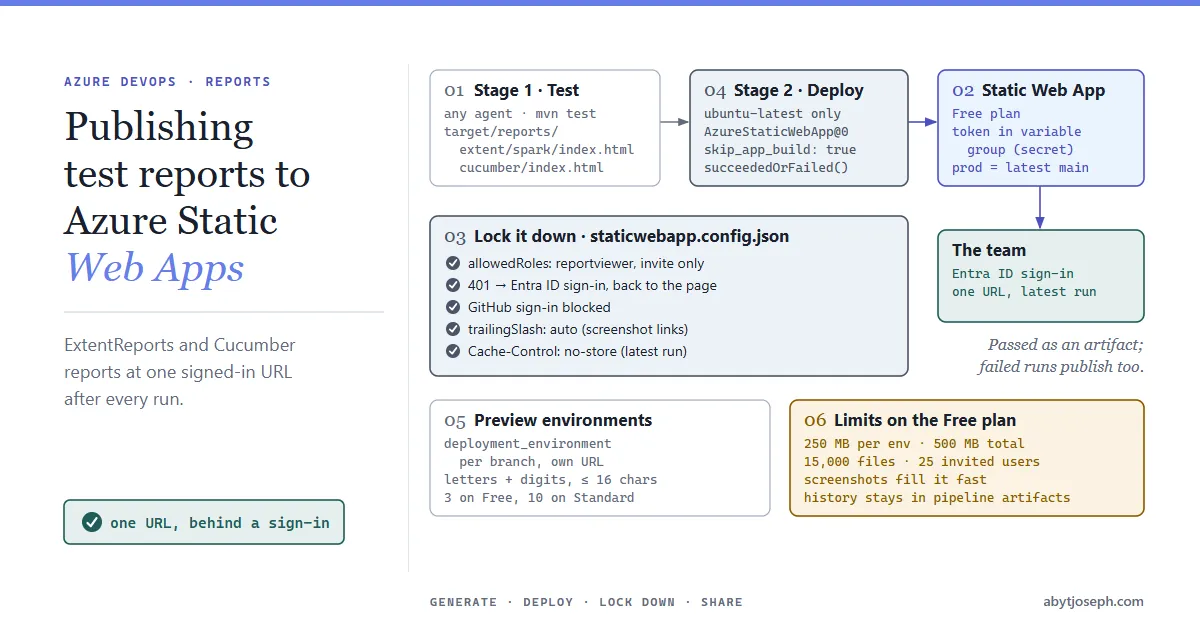
Publish ExtentReports and Cucumber HTML test reports to an Azure Static Web App at the end of every Azure DevOps test run, behind a sign-in, so anyone on the team can open them in a browser.
In this article7 sections
At the end of an automated test run in Azure DevOps, the Tests tab shows passed and failed counts. The ExtentReports (Spark) and Cucumber HTML reports, with their steps, screenshots and logs, usually end up in a pipeline artifact. To read one you have to find the run, download a zip, extract it and open an HTML file locally. Testers put up with that. Product owners, developers and managers usually don’t bother.
This article publishes those reports to an Azure Static Web App at the end of every run. The team gets one URL that always shows the latest report, and the reports stay private behind a Microsoft Entra ID sign-in. The Free plan is enough for this.

The examples use Java, Maven, Cucumber 7 and JUnit 5. Only the first section depends on that stack. Any tool that writes a folder of static HTML can be published the same way.
Generate both reports into one folder
Write both reports under one folder (target/reports) so the pipeline only has a single path to publish.
Add the ExtentReports Cucumber 7 adapter to pom.xml. The adapter is built for Cucumber 7 (its last release, 1.14.0, is from August 2023), and Cucumber 8 came out in September 2026. Stay on Cucumber 7.x and declare your own cucumber-java and cucumber-junit-platform-engine versions explicitly, so Maven doesn’t fall back to the adapter’s 7.2.3:
<dependency>
    <groupId>tech.grasshopper</groupId>
    <artifactId>extentreports-cucumber7-adapter</artifactId>
    <version>1.14.0</version>
    <scope>test</scope>
</dependency>
Register the plugins in src/test/resources/junit-platform.properties. The built-in html plugin writes Cucumber’s own single-file report. The junit plugin writes an XML file for the Azure DevOps Tests tab. The trailing colon after ExtentCucumberAdapter is required.
cucumber.plugin=pretty, \
  html:target/reports/cucumber/index.html, \
  junit:target/reports/cucumber/cucumber.xml, \
  com.aventstack.extentreports.cucumber.adapter.ExtentCucumberAdapter:
Configure the Spark report in src/test/resources/extent.properties:
extent.reporter.spark.start=true
extent.reporter.spark.out=target/reports/extent/spark/index.html

# Screenshots are saved here and linked relative to the report file
screenshot.dir=target/reports/extent/
screenshot.rel.path=../
Name both report files index.html. Static Web Apps serves index.html as a folder’s default document, so /extent/spark/ and /cucumber/ open the reports directly. The trailing slash matters for the relative screenshot links; the config below adds it for anyone who leaves it off.
Create the Static Web App
You can create the app in the portal: choose Other as the deployment source, because Azure DevOps will push to it with a token. Or use the Azure CLI:
az group create --name rg-test-reports --location westeurope

az staticwebapp create `
  --name swa-test-reports `
  --resource-group rg-test-reports `
  --location westeurope `
  --sku Free
Get the deployment token. The pipeline uses it to authenticate the upload:
az staticwebapp secrets list --name swa-test-reports --query "properties.apiKey" -o tsvIn Azure DevOps, go to Pipelines >> Library and create a variable group called test-reports. Add a variable SWA_DEPLOYMENT_TOKEN, paste the token and click the padlock to make it a secret. Anyone who has the token can replace the site’s content, so treat it like a password. You can reset it from the app’s Overview >> Manage deployment token page.
Lock the site down
A new Static Web App is public. Test reports can contain URLs, test data, stack traces and screenshots of internal systems, so add a staticwebapp.config.json. In this example it lives in the repository at reports-site/staticwebapp.config.json:
{
  "routes": [
    { "route": "/.auth/login/github", "statusCode": 404 },
    { "route": "/*", "allowedRoles": ["reportviewer"] }
  ],
  "responseOverrides": {
    "401": { "statusCode": 302, "redirect": "/.auth/login/aad?post_login_redirect_uri=.referrer" }
  },
  "trailingSlash": "auto",
  "globalHeaders": {
    "Cache-Control": "no-store"
  }
}
What each part does:
allowedRoles: ["reportviewer"]: only users with the customreportviewerrole can open anything.401override: signed-out visitors go straight to the Microsoft Entra ID sign-in page instead of getting an error.post_login_redirect_uri=.referrersends them back to the page they opened, such as a shared link to/extent/spark/, instead of/.- The GitHub route: Entra ID and GitHub sign-in are both enabled by default. This rule turns GitHub off. It also stops anyone accepting a GitHub invitation, so always invite with
AAD. trailingSlash: auto: redirects/extent/sparkto/extent/spark/. Without the slash, the report’s../screenshot links resolve one folder too high and return 404.Cache-Control: no-store: browsers fetch the latest report instead of showing a cached old run.
Invite people from Role management in the portal, or with the CLI. Each user opens the invitation link once and signs in, and they have access from then on:
$swaHost = az staticwebapp show --name swa-test-reports --query defaultHostname -o tsv

az staticwebapp users invite `
  --name swa-test-reports `
  --authentication-provider AAD `
  --user-details jane.doe@contoso.com `
  --roles reportviewer `
  --domain $swaHost `
  --invitation-expiration-in-hours 168
The Free plan allows 25 invited users per app, which covers most delivery teams. If you need more, or want to limit access to your own tenant only, the Standard plan supports a custom Entra ID app registration.
The pipeline
Two details shape this pipeline:
- The
AzureStaticWebApp@0task runs only on Linux agents. Your tests might need Windows (desktop browsers, a Windows-only driver), so the tests and the deployment run in separate stages and pass the reports along as a pipeline artifact. - The reports have to be published when tests fail. By default a failing
mvn teststep skips everything after it, and a failed run is when people most need the report. The steps and the second stage usesucceededOrFailed().
Save this as azure-pipelines.yml:
trigger:
  - main

variables:
  - group: test-reports   # holds the secret SWA_DEPLOYMENT_TOKEN

stages:
  - stage: Test
    jobs:
      - job: RunTests
        pool:
          vmImage: windows-latest   # any OS works here
        steps:
          - script: mvn -B test
            displayName: Run Cucumber tests

          - task: PublishTestResults@2
            displayName: Publish results to the Tests tab
            condition: succeededOrFailed()
            inputs:
              testResultsFormat: JUnit
              testResultsFiles: target/reports/cucumber/cucumber.xml
              testRunTitle: Cucumber $(Build.BuildNumber)

          - task: PublishPipelineArtifact@1
            displayName: Keep the HTML reports with the run
            condition: succeededOrFailed()
            inputs:
              targetPath: target/reports
              artifact: test-reports

  - stage: PublishReports
    dependsOn: Test
    condition: succeededOrFailed()
    jobs:
      - job: DeployReports
        pool:
          vmImage: ubuntu-latest   # AzureStaticWebApp@0 is Linux-only
        steps:
          - checkout: self   # for reports-site/staticwebapp.config.json

          - task: DownloadPipelineArtifact@2
            inputs:
              artifact: test-reports
              path: $(Pipeline.Workspace)/site

          - script: |
              cp reports-site/staticwebapp.config.json "$(Pipeline.Workspace)/site/"
              cat > "$(Pipeline.Workspace)/site/index.html" <<EOF
              <!doctype html>
              <html lang="en">
              <head><meta charset="utf-8"><title>Test reports</title></head>
              <body>
                <h1>Test reports</h1>
                <p>Run $(Build.BuildNumber) of $(Build.SourceBranchName),
                   commit $(Build.SourceVersion).</p>
                <ul>
                  <li><a href="/extent/spark/">ExtentReports (Spark)</a></li>
                  <li><a href="/cucumber/">Cucumber HTML report</a></li>
                  <li><a href="$(System.CollectionUri)$(System.TeamProject)/_build/results?buildId=$(Build.BuildId)">Pipeline run</a></li>
                </ul>
              </body>
              </html>
              EOF
            displayName: Add landing page and config

          - task: AzureStaticWebApp@0
            displayName: Deploy reports to Static Web App
            inputs:
              workingDirectory: $(Pipeline.Workspace)
              app_location: site
              output_location: ''
              skip_app_build: true
              skip_api_build: true
              azure_static_web_apps_api_token: $(SWA_DEPLOYMENT_TOKEN)
Notes:
skip_app_build: truewith an emptyoutput_locationtells the task to upload the folder as it is and skip the Oryx build step, which a folder of reports doesn’t need. It is faster and avoids Oryx trying, and possibly failing, to detect a framework.app_locationis relative toworkingDirectory, so the downloaded artifact must be underworkingDirectory, which here is$(Pipeline.Workspace).- The landing page shows the run number and links back to the pipeline run, so readers can tell which run they are looking at. Pass and fail counts are already in the Tests tab of that run. If your project name has a space, the link contains a raw space; browsers usually cope, but it isn’t a valid URL.
- If compilation fails,
mvn testwrites no reports, so the publish-artifact step fails, and the deploy stage then has nothing to download. That’s the right result: there is nothing to show. - The first run that uses the
test-reportsvariable group may pause until someone selects Permit on the run page.
Run the pipeline. The deploy task prints the site URL at the end of its log. Open it, sign in with an invited account, and the landing page links to both reports.
Reports per branch with preview environments
The pipeline above always deploys to the production environment, so the URL shows the latest run from main. It also only triggers on main, so first widen the trigger, for example trigger: ['*'] or branches: include: [main, feature/*], so branch pushes run the pipeline.
To keep branch runs from overwriting production, add deployment_environment to the deploy task. Each name gets its own preview URL. Environment names may only contain letters and digits, up to 16 characters, so feature/login-page (which gives login-page) isn’t valid as it is. Clean the name in a step before the deploy task:
          - script: |
              name=$(echo "$(Build.SourceBranchName)" | tr -cd '[:alnum:]' | cut -c1-16)
              echo "##vso[task.setvariable variable=swaEnv]$name"
displayName: Make a valid environment name deployment_environment: $(swaEnv)Leave it out for main, for example with a condition or a separate task. Pull request builds all get the branch name merge, so they would share one environment. The Free plan allows three preview environments (Standard allows ten), so delete stale ones under Environments in the portal.
Limits worth knowing
| Free plan | Standard plan | |
|---|---|---|
| Storage per environment | 250 MB | 500 MB |
| Total storage, all environments | 500 MB | 2 GB |
| Preview environments | 3 | 10 |
| Files per app | 15,000 | 15,000 |
| Invited users for custom roles | 25 | 25 |
Source: Quotas in Azure Static Web Apps. Check it before relying on these numbers, as they change.
Screenshots use most of that space. A suite that takes a screenshot on every step can pass 250 MB quickly. Screenshot only on failure, or compress the images.
Common issues
- The deploy task fails with an authorization or deployment token error. The token is wrong or was reset. Copy it again with
az staticwebapp secrets listand update the secret variable. - The task fails on a Windows or macOS agent.
AzureStaticWebApp@0runs only on Linux. Move it to anubuntu-latestjob as shown above. - Oryx build errors or warnings in the log.
skip_app_build: trueis missing, orapp_locationdoesn’t point at the report folder. - Signed-in users get
403 Forbidden. The user signed in but hasn’t accepted an invitation forreportviewer, or signed in with a different account from the one invited. - The report shows an older run. Check that
Cache-Control: no-storeis in the config, then hard-refresh. Also check that the deploy stage actually ran, since a cancelled run doesn’t deploy. - Images missing from the Spark report.
screenshot.dirandscreenshot.rel.pathdon’t match, only the HTML file was published, or the report was opened without the trailing slash (/extent/spark) andtrailingSlashisn’t set. See the tip in the first section.
Hope that was helpful! :)